Let me be real with you for a second. Two years ago, I was running a small remote team and honestly had no idea what I was doing tool-wise. We had Slack, WhatsApp, a random Google Drive folder with no structure, and a spreadsheet someone had titled ‘master task list – FINAL v3 updated.’ It was chaos. Things got missed. Deadlines were vague. Nobody knew what anyone else was actually working on.
That experience made me obsessive about finding the best tools for remote teams — not in theory, but tools that actually get adopted, actually get used daily, and actually reduce that anxious ‘wait, who was supposed to do this?’ feeling. Over two years of testing, switching, arguing with teammates about tools, and finally settling on a stack that works — here’s what I found.
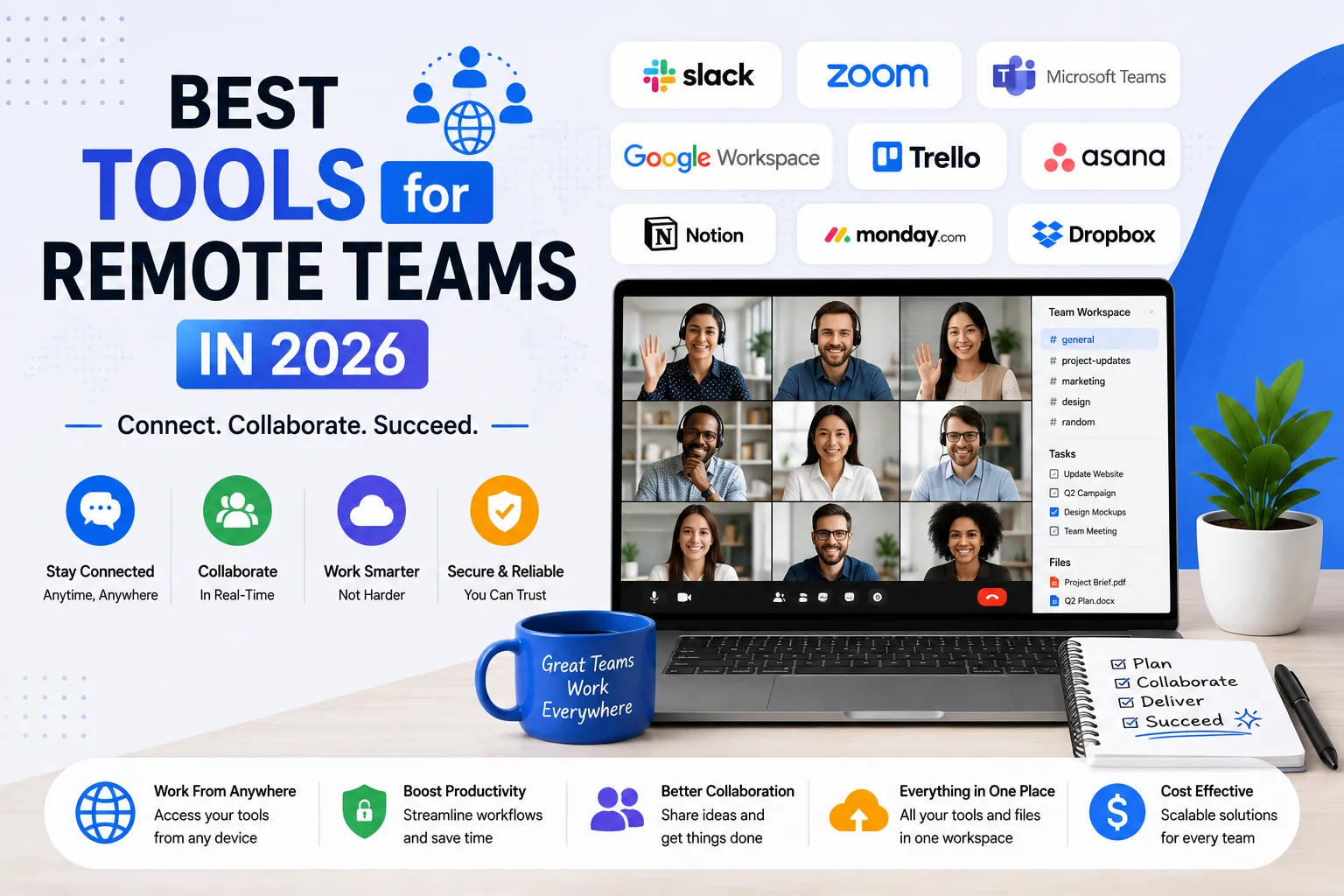
This isn’t a list of every tool ever made. I’ve picked 7 tools that cover the real categories remote teams struggle with: communication, project management, documentation, video calls, async updates, and email. Every tool on this list I’ve either personally used for a sustained period or tested extensively with real workflows — not just demo accounts.
If you specifically need a project management deep-dive, I’ve also written about the best project management tools for small businesses in 2026 — covering ClickUp, Asana, monday.com, Notion, and Trello with full pros/cons and pricing.
Best Tools for Remote Teams — Quick Comparison Table
Here’s the full list at a glance before we get into each one:
| Tool | Category | Free Plan | Paid From | Best For Remote Teams |
| Slack | Communication | ✅ Limited | $7.25/user/mo | Team messaging + async chat |
| ClickUp | Project Mgmt | ✅ Generous | $7/user/mo | Tasks + docs + goals in one place |
| Google Workspace | Productivity Suite | ✅ Personal only | $6/user/mo | Email + docs + meetings |
| Zoom | Video Calls | ✅ 40-min limit | $13.33/user/mo | Video meetings + webinars |
| Notion | Docs + Wiki | ✅ Personal | $10/user/mo | Team knowledge base + notes |
| Loom | Async Video | ✅ 25 videos | $12.50/user/mo | Quick video updates without meetings |
| Brevo / Email | Email Marketing | ✅ Unlimited contacts | $9/month | Team email campaigns + CRM |
| My honest take: You don’t need all 7 of these. Most remote teams can run efficiently on 3-4 tools. The goal is covering Communication + Project Management + Documentation + Video — everything else is optional. I’ll tell you exactly what I use and why at the end. |
Slack — Still the Best Communication Tool for Remote Teams in 2026
Okay, I know what you’re thinking — ‘everyone knows Slack.’ But here’s what nobody tells you: Slack is also easy to use badly. I spent 6 months on a team where Slack was a disaster — 40 channels nobody cleaned up, notifications 24/7, important messages buried under GIF wars, and the whole team developed a subtle Slack anxiety. So before anything else: if you’re going to use Slack, set up channel structure rules on day one.

That said — when Slack is set up well, it’s genuinely the best real-time messaging tool for distributed teams. The channel system lets you separate projects, departments, and random chatter. Threads keep conversations organized without creating channel noise. And the integrations — over 2,600 of them — mean your ClickUp tasks, Google Calendar events, and Zoom links show up directly inside Slack without app-switching.
| In my experience: The single biggest Slack mistake I see teams make is treating it like WhatsApp — every message gets a response immediately, everything feels urgent, and the team burns out. Set asynchronous norms from day one: not everything needs an instant reply. That mindset shift makes Slack actually work for remote teams. |
Understand Pros & Cons
| ✅ PROS | ❌ CONS |
| ✅ Best-in-class channel organization for teams of any size | ❌ Free plan only stores last 90 days of messages (was 10,000 messages before 2023) |
| ✅ 2,600+ integrations — connects to almost every tool you use | ❌ Can become notification hell without strict norms |
| ✅ Threads keep conversations clean and organized | ❌ Paid plan starts at $7.25/user/month — adds up for larger teams |
| ✅ Huddles — instant lightweight voice calls with no scheduling | ❌ No built-in task management — needs ClickUp or Asana integration |
| ✅ Async-friendly — works across time zones without friction | ❌ Search can be slow on large workspaces |
| ✅ Mobile app is genuinely excellent | ❌ Can fragment communication if too many channels are created |
| ✅ Clips — record quick voice/video messages inside Slack | ❌ undefined |
| ✅ Best for: Remote teams of 3-100 people who need structured messaging, time-zone-friendly async communication, and deep integrations with their existing tool stack. If you’re building a remote team from scratch — start with Slack. |
ClickUp — The Best Project Management Tool
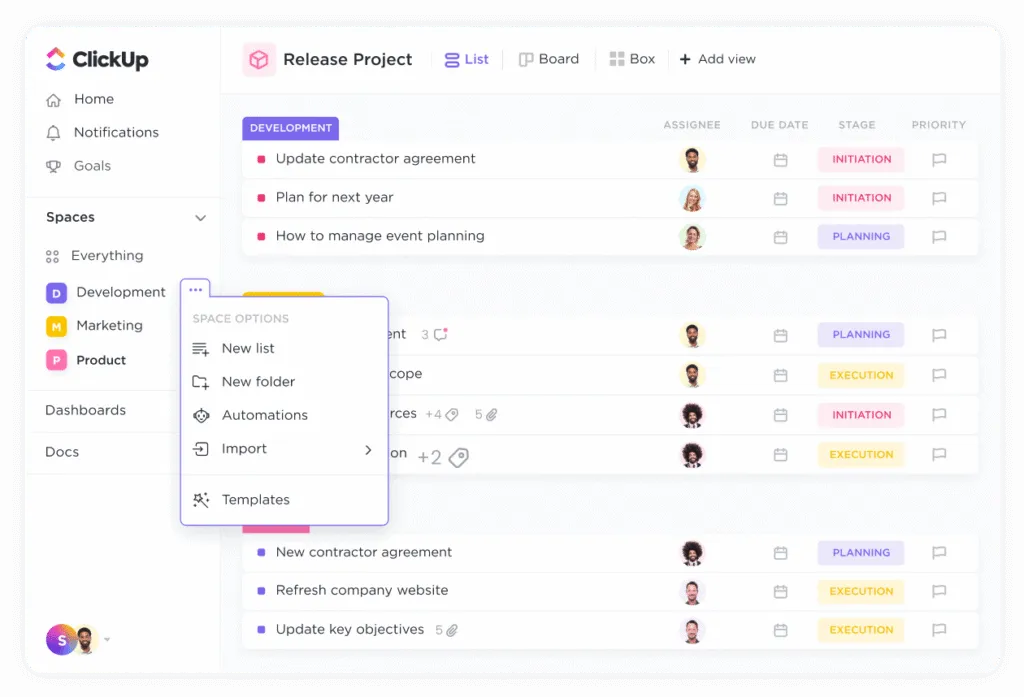
I’ll be honest — when I first tried ClickUp, I hated it. The interface felt overwhelming, I couldn’t figure out the hierarchy (Spaces → Folders → Lists → Tasks), and I almost quit after 3 days. Then a friend showed me how his team had set it up, and everything clicked. Literally. That’s when I understood: ClickUp isn’t a tool you open and immediately understand — it’s a tool you configure for your team’s exact workflow, and once that’s done, it becomes the center of everything.
My Experience Using ClickUp With Remote Teams
For remote teams specifically, ClickUp solves the biggest distributed work problem: nobody knows what’s happening. With ClickUp, every task has an owner, a status, a deadline, and a priority. You can see what your entire team is working on from a single dashboard. Comments, file attachments, and time tracking all live inside the task — not scattered across emails and WhatsApp messages
| In my experience: Give ClickUp 2 weeks before judging it. The first week will feel slow as you set things up. By week two, your team will wonder how they managed without it. The free plan is also genuinely the most generous I’ve seen — unlimited tasks, unlimited members, and even basic automation. |
Still deciding between ClickUp and Asana for your remote team? I’ve written a full ClickUp vs Asana: Which One Should You Choose? comparison — with pricing, features, free plan comparison, and a clear recommendation for different team types.
PROS & CONS
| ✅ PROS | ❌ CONS |
| ✅ Unlimited tasks and members on free plan — genuinely useful long-term | ❌ Steep learning curve — takes 1-2 weeks to configure properly |
| ✅ 15+ views: List, Board, Gantt, Calendar, Timeline, Workload, Mind Map | ❌ Can feel cluttered for simple teams who just need basic task lists |
| ✅ Built-in Docs, Goals, and time tracking — replaces 3-4 separate tools | ❌ AI features require Unlimited plan ($7/mo) or above |
| ✅ Native AI (ClickUp Brain) for task summaries and writing | ❌ Mobile app less powerful than desktop version |
| ✅ $7/user/month — most affordable feature-rich PM tool available | ❌ Notification overload possible if not configured carefully |
| ✅ Works across time zones with priorities and deadlines always visible | ❌ Some advanced features still feel unpolished compared to Asana |
| ✅ Active community — thousands of templates and workflow setups shared | ❌ Performance can slow with very large workspaces |
| ✅ Best for: Remote teams that want one tool to replace Asana + Notion + time tracker + docs. Especially strong for agencies, content teams, and product teams managing multiple projects simultaneously. |
Google Workspace — The Remote Team Productivity Suite Most Teams Already Need
Here’s a genuine opinion: I think most small remote teams underestimate how far Google Workspace’s Business Starter plan ($6/user/month) takes you. Gmail with custom domain, Google Drive with 30GB per user, Google Meet for video calls, Google Docs/Sheets/Slides with real-time collaboration, Google Calendar for scheduling — all fully integrated, all in the browser, no software to install.
Google Workspace Costs
For a team of 5 people, Google Workspace costs $30/month. That covers your entire email, document, and meeting infrastructure. Compare that to paying separately for email hosting, a cloud storage tool, a video call tool, and a document collaboration tool — you’d easily spend $80-100/month before reaching the same functionality. The integration between apps is also genuinely seamless — Calendar events automatically create Meet links, Drive files appear in Gmail, Docs comments notify collaborators instantly.
| In my experience: The one thing Google Workspace doesn’t replace is project management (you’ll still need ClickUp or Asana) and async video (you’ll still want Loom for quick updates). But for everything else — email, docs, meetings, storage — it’s the backbone of any lean remote team setup. |
PROS & CONS
| ✅ PROS | ❌ CONS |
| ✅ All-in-one: email + docs + calendar + meet + storage in one subscription | ❌ Free plan is personal Gmail only — no custom domain |
| ✅ Real-time collaboration in Docs/Sheets/Slides — multiple editors simultaneously | ❌ Business Starter limited to 30GB storage per user — fills up with video |
| ✅ Gemini AI built into Gmail, Docs, Sheets — available on Business plans | ❌ Google Meet less feature-rich than Zoom for large webinars/events |
| ✅ $6/user/month Business Starter — extremely cost-effective for small teams | ❌ No built-in project management — needs ClickUp or Asana alongside |
| ✅ Browser-based — no software installation, works on any device | ❌ Gemini AI quality inconsistent across different Workspace apps |
| ✅ 99.9% uptime SLA — reliable for business-critical communication | ❌ Can be confusing for non-technical users to set up the first time |
| ✅ Excellent admin controls — user management, security, data governance | ❌ Google occasionally deprecates products — some users don’t trust long-term roadmap |
| ✅ Best for: Every remote team, honestly. If you don’t have a business email and document suite set up yet, start here. Google Workspace Business Starter at $6/user/month is the most cost-effective foundation for a remote team’s productivity stack. |
Zoom — Still the Most Reliable Video Call Tool
Look, I’ve tried switching my team to Google Meet, and Microsoft Teams, even Luma for video calls. Every time, we end up back on Zoom. Not because it’s the cheapest (it’s not — $13.33/user/month for Pro) or the most innovative (it isn’t), but because it’s the most reliable. When a client meeting is happening, I don’t want to wonder if the host’s camera will work or whether the screen share will lag. With Zoom, it just works — and in 2026 that consistency is still genuinely valuable.
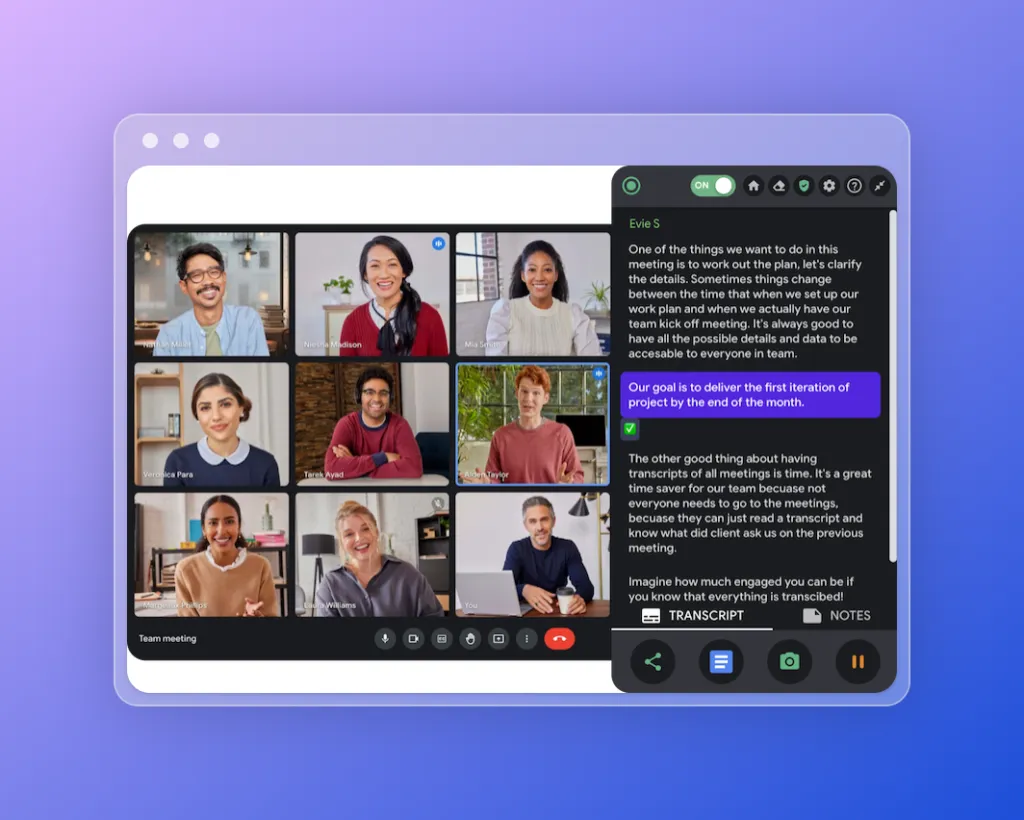
The free plan allows meetings of up to 100 participants but caps them at 40 minutes — which is workable for internal standups and short calls, but annoying for anything longer. The Pro plan at $13.33/user/month removes the time limit, adds cloud recording (5GB), and includes AI Companion for meeting transcription and summaries. For client-facing teams, the transcription alone saves 20-30 minutes of manual note-taking per meeting.
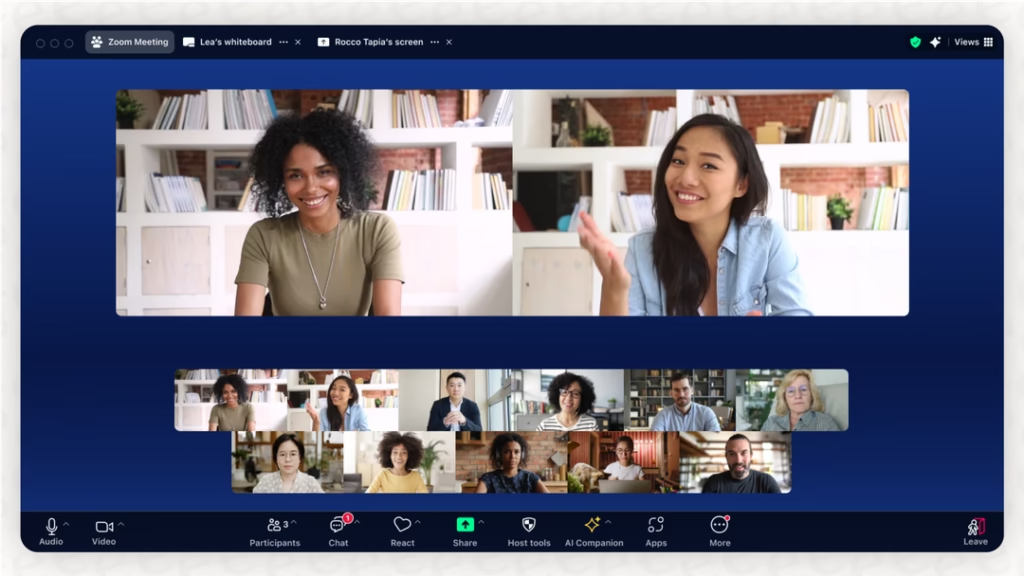
| ✅ Best for: Teams with regular client meetings, external calls, or webinars who need maximum reliability. For internal-only calls, Google Meet (included in Workspace) is often sufficient and saves the extra cost. |
Notion — The Best Documentation Tool in 2026
If your remote team’s documentation lives in random Google Docs with names like ‘process doc – draft – REAL final version’ scattered across Drive folders nobody maintains — Notion is the solution. I switched my team to Notion for our internal wiki and SOPs (Standard Operating Procedures) about 18 months ago, and the difference was immediate. New team members stopped asking the same onboarding questions because everything was actually findable. Processes got updated because editing was easy. Knowledge stopped leaving with people who quit.
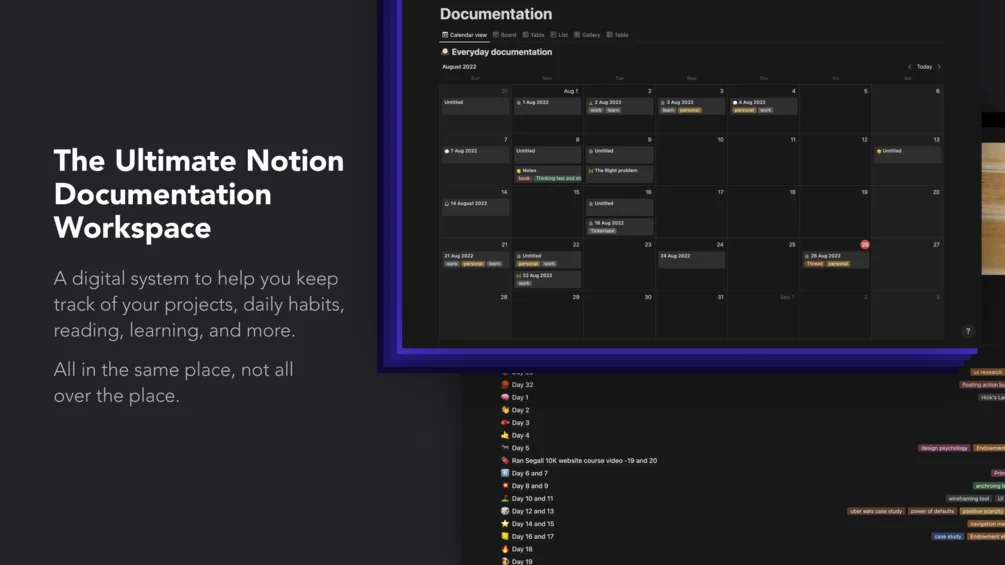
Notion works best as a team knowledge base
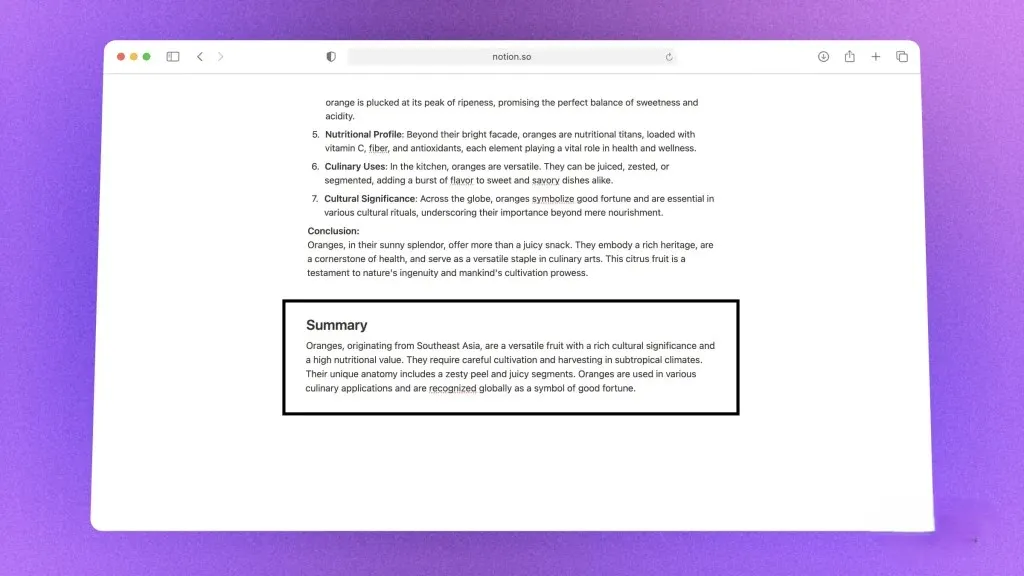
Notion works best as a team knowledge base — a single source of truth where processes, meeting notes, client briefs, research, and company information all live in one searchable place. The AI features (Notion AI, included in the Plus plan) are genuinely useful for summarizing long pages, answering questions about your content, and drafting first versions of documents. The free plan is solid for individuals but limited for teams (no admin controls, no permission management).
| In my experience: Don’t use Notion as a task manager — it’s not built for it. Use ClickUp for tasks and Notion for documentation. Teams that try to do everything in Notion end up with a beautiful but chaotic workspace where nothing gets done. Each tool has its job. |
PROS & CONS
| ✅ PROS | ❌ CONS |
| ✅ Best team wiki and documentation tool available | ❌ Not a task manager — don’t try to replace ClickUp/Asana with it |
| ✅ Flexible databases — works for CRM, content calendar, meeting notes, anything | ❌ Free plan limited for teams (no team spaces, no admin controls) |
| ✅ Notion AI on Plus plan — summarize, draft, and search your content | ❌ Can become disorganized if nobody maintains structure |
| ✅ Clean, beautiful interface — teams actually enjoy using it | ❌ Performance can slow with very large databases |
| ✅ Templates for almost every business use case | ❌ Offline access limited — needs internet connection |
| ✅ Works well alongside ClickUp (docs in Notion, tasks in ClickUp) | ❌ Learning curve for non-technical users who find it overly flexible |
| ✅ $10/user/month Plus plan — reasonable for a documentation tool | ❌ Search is improving but still not as fast as Google Drive search |
| ✅ Best for: Remote teams of 3+ people who need a central knowledge base, internal wiki, SOPs, and meeting notes. Especially valuable during onboarding — new team members can self-serve 80% of their questions from a well-maintained Notion workspace. |
Loom — The Hidden Gem That Cuts Remote Meeting Time in Half
Loom is probably the least-known tool on this list and the one I recommend most enthusiastically to remote teams. The concept is simple: instead of scheduling a 30-minute meeting to explain something to a teammate, you record a 3-minute screen + voice video and send the link. They watch it when they have time, leave a comment, and you’ve just replaced a meeting with an async exchange that respected both your schedules.

Started Sing Loom with My Team
I started using Loom with my team about a year ago for things like design feedback, bug reports, and process walkthroughs. Within a month, our weekly synchronous meeting count dropped from 8 to 4. The team — especially those in different time zones — loved the flexibility. And the quality of communication actually improved because screen recordings are often clearer than verbal explanations in a call.

| In my experience: The sweet spot for Loom is anything that would take more than 3 paragraphs to explain in a message but doesn’t need a full meeting. ‘Here’s how to set up the new client folder structure’ or ‘here’s my feedback on this design’ — perfect Loom use cases. It saves enormous time once the team gets used to the async mindset. |
PROS & CONS
| ✅ PROS | ❌ CONS |
| ✅ Eliminates unnecessary meetings — record once, watch anytime | ❌ Free plan limited to 25 videos and 5-minute recordings |
| ✅ Free plan includes 25 videos — enough to test properly | ❌ $12.50/user/month Starter paid plan — adds up for large teams |
| ✅ AI-generated transcripts and summaries on paid plans | ❌ Not a replacement for real-time calls when quick back-and-forth is needed |
| ✅ Viewers can leave timestamped comments on specific moments | ❌ Video quality depends on user’s recording setup and microphone |
| ✅ Works seamlessly with Slack — paste Loom links directly into messages | ❌ Some recipients unfamiliar with Loom may not watch immediately |
| ✅ Reduces timezone friction dramatically for distributed teams | ❌ Storage management becomes an issue with heavy long-term use |
| ✅ Mobile recording available — not just desktop screen capture | ❌ No live collaboration features — strictly async |
| ✅ Best for: Any remote team struggling with meeting overload, especially teams spread across time zones. If your team does more than 5 internal meetings per week, Loom will reduce at least 2-3 of them. The ROI on time saved is immediate. |
Email Marketing Tools for Remote Teams — Why Your Team Needs One
This one surprises people. But hear me out: if your remote team does any client communication, lead nurturing, product announcements, or customer updates — you need a proper email marketing tool in your stack. Not just Gmail. Not just a BCC to a list. A real email marketing platform that gives you templates, tracking, and the ability to send professional campaigns without the technical chaos.
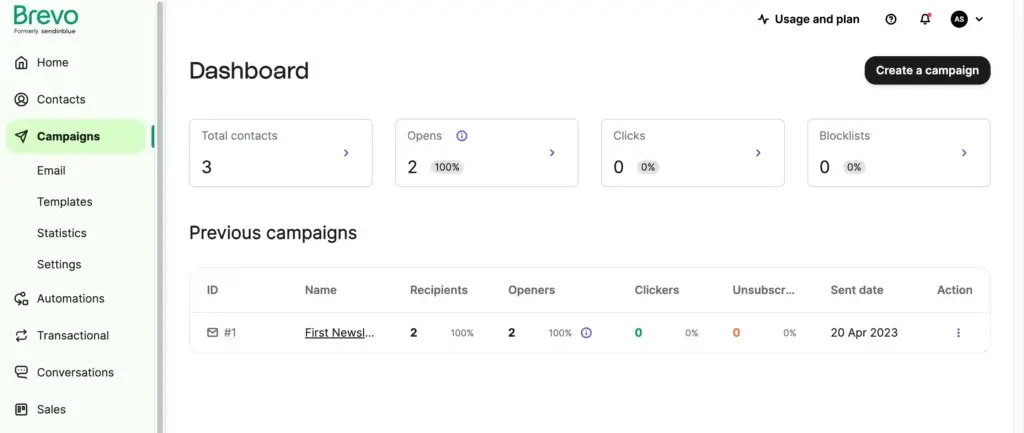
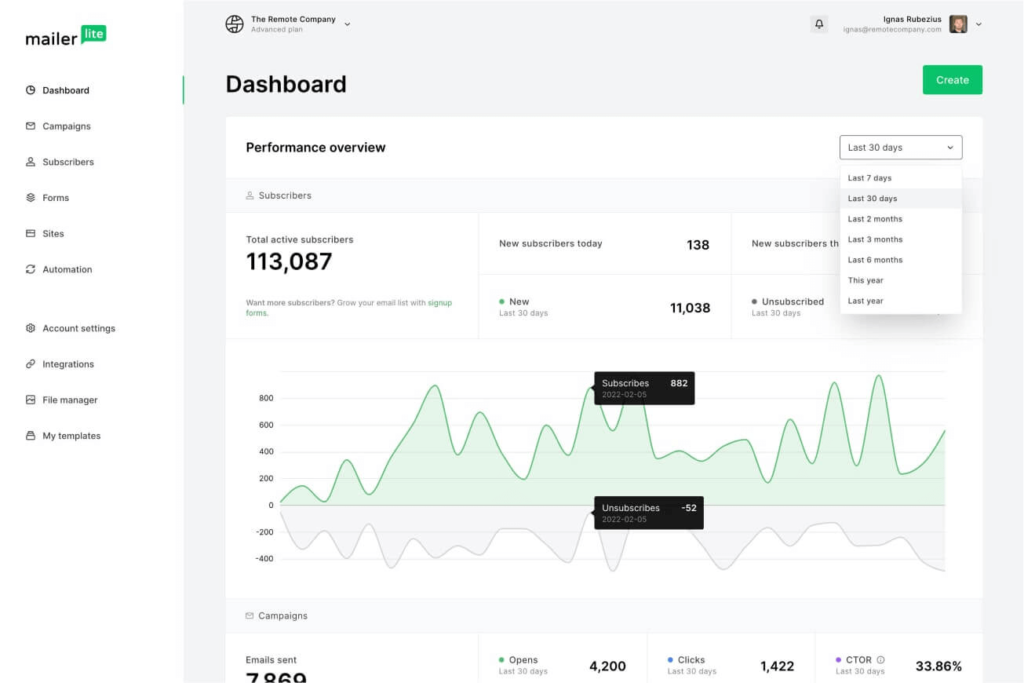
The tools I recommend for remote teams specifically are Brevo (for teams that want email + CRM combined) and MailerLite (for teams that primarily need clean email campaigns on a tight budget). Both have excellent free plans, both work seamlessly with remote team workflows, and both are genuinely simple enough that any team member can send a campaign without a marketing background
For a full breakdown of email tools for remote business teams, I’ve covered all the major options in our guide to the best email marketing tools for small businesses in 2026 — with pricing, free plans, and honest recommendations for every budget and use case.
- Adobe Express
- Adobe Express Premium
- Adobe Express vs Canva
- Ahrefs
- AI search
- AI Writing Tools
- Asana
- Asana Review
- Backlink Tools
- Beginner CRM Guide
- Beginner Guide
- Bigin
- Brevo
- Brevo vs Mailchimp
- Canva
- Canva Free
- Canva Pro
- Canva Review
- ClickUp
- Comparison
- CRM
- CRM Software
- Design Tools
- eCommerce
- eCommerce Platform
- Email Marketing
- Email Marketing Basics
- Email Tool Comparison
- Free CRM
- Freshsales
- Google Workspace
- Grammar Checker
- Grammarly
- Grammarly Alternatives
- Grammarly Expert Review
- Grammarly Pro
- Grammarly Review
- Graphic Design
- How to Choose
- HubSpot
- HubSpot Alternatives
- HubSpot Free CRM
- HubSpot Review
- Intuit Mailchimp
- Kanban
- keyword research
- Keyword Research Tools
- LanguageTool
- LeadBooster
- Loom
- Mailchimp
- Mailchimp Free Plan
- Mailchimp Pricing
- Mailchimp Review
- MailerLite
- Marketing Automation
- monday.com
- Note-Taking
- Notion
- Notion AI
- Notion for Students
- Notion Review
- Pipedrive
- Pipedrive Pricing
- Pipedrive Review
- PM Software
- PM Tools Comparison
- Productivity Tools
- Project Management
- Project Management Software
- ProWritingAid
- QuillBot
- rank tracking
- Remote Teams
- Remote Work Tools
- Sales CRM
- SE Ranking
- SE Ranking pricing
- SE Ranking Review
- SE Ranking vs Semrush
- SEO Audit Tools
- SEO Software Reviews
- SEO tools
- SEO tools 2026
- Shopify
- Shopify Apps
- Shopify Payments
- Slack
- Small Business
- Small Business CRM
- Small Business Marketing
- Small Business Tools
- Solo Work
- Team Collaboration
- Trello
- Trello Premium
- Trello Review
- website audit
- What is CRM
- WooCommerce
- WooCommerce Hosting
- WooCommerce Plugins
- WooCommerce Review
- WooCommerce vs Shopify
- WordPress eCommerce
- Zoho CRM
- Zoho CRM Plus
- Zoho CRM Review
- Zoho Projects
Specifically considering Brevo for your remote team? I’ve written a full Brevo review 2026 covering its free plan, CRM features, email deliverability, and whether it’s worth the upgrade — useful reading before you decide.
What Tools for Remote Teams Do You Actually Need? — My Stack Recommendation
After two years of testing different combinations, here’s the lean stack I actually recommend for a small remote team of 2-10 people — covering every core need without tool overload
- Communication → Slack (free plan works to start)
- Project Management → ClickUp (free plan is genuinely sufficient for small teams)
- Documents + Wiki → Notion (free for individuals, Plus plan for teams at $10/user/mo)
- Video Calls → Google Meet (included free with Google Workspace) or Zoom Free for longer calls
- Async Video → Loom (free plan — 25 videos — is enough to start)
- Email + Docs Suite → Google Workspace Business Starter ($6/user/mo — best value in the category)
- Email Campaigns (if needed) → MailerLite Free or Brevo Free
| Total minimum cost for a 3-person remote team with this stack:• Slack Free + ClickUp Free + Notion Free + Loom Free + Google Workspace Starter = $18/month (3 × $6)You can run a serious, professional remote team for $18/month. That’s genuinely impressive compared to what this would have cost in 2020. |
3 Remote Team Tool Mistakes I Made (So You Don’t Have To)
Real talk — here are three mistakes I personally made when setting up tools for remote teams that cost time, money, and team morale:
Mistake #1 — Too Many Tools at Once
I once onboarded a team onto Slack + Asana + Notion + Trello + Google Workspace + Zoom + Loom all in the same week. The team was overwhelmed, nothing got adopted properly, and we ended up with 6 half-used tools instead of 2 well-used ones. My advice: pick Communication + Project Management first. Add documentation after 30 days. Add async video after 60. Let each tool get adopted before adding the next.
Mistake #2 — Choosing the Tool With the Most Features
The ‘most features’ trap is real. I spent three weeks configuring a very powerful but complex PM tool that my team refused to use because it was too complicated. The best tool for your remote team is the one your team will actually open every day — not the one with the most checkboxes ticked on a feature comparison. Simplicity wins adoption. Adoption wins productivity.
Mistake #3 — No Communication Norms
Tools don’t fix culture problems. I’ve seen teams use all the right tools and still have terrible communication because nobody agreed on: what’s urgent vs. async, which channel is for what, expected response times, and whether Slack messages count as official instructions. Before rolling out any tool, write a one-page ‘how we communicate’ document. It’s the most important document a remote team can have.
FAQs — Tools for Remote Teams
Final Verdict — Best Tools for Remote Teams in 2026 (My Personal Take)
Okay, here’s my genuine, no-fluff recommendation after two years of running a small remote team and testing more tools than I care to count.
If I was starting a remote team from scratch today — with a tight budget and no existing tool infrastructure — here’s exactly what I’d do: Set up Google Workspace ($6/user/month) on day one. This handles email, documents, calendar, and video calls in one affordable package. Then add ClickUp free immediately for task management. On week two, introduce Slack free to get communication off WhatsApp and into something structured. That’s it for month one. Three tools. Total cost: $6/user/month.
My Recommended Tool Stack for Remote Teams
After 30 days, once the team is actually using those three daily, I’d add Notion for documentation ($10/user/month) and Loom free for async video updates. That stack — Google Workspace + ClickUp + Slack + Notion + Loom — covers everything a small remote team needs to run professionally, stay aligned across time zones, and actually get work done. Total cost for a 3-person team: about $48/month. Worth every rupee.
The tools for remote teams that actually work aren’t always the most popular or the most advertised. They’re the ones your team uses consistently, that reduce confusion rather than add it, and that grow with you without surprise price hikes. Start small, adopt deeply, and add tools only when you have a specific problem they solve — not because someone’s blog post said you should
| My personal remote team stack in 2026:✅ Google Workspace (email + docs + calendar)✅ ClickUp (tasks + project management)✅ Slack (team communication)✅ Notion (wiki + documentation)✅ Loom (async video updates)✅ MailerLite (email campaigns when needed)Total for 5-person team: approximately $100-120/month. That’s a complete, professional remote team infrastructure. |
Building a complete business tool stack for your remote team? Don’t overlook CRM — managing client relationships remotely needs structure too. Check out our guide to the best CRM tools for small businesses in 2026 — covering HubSpot Free, Zoho, Brevo, Pipedrive, and more.
🔍 How We Tested This Tool
Every tool on Tool Growth is tested hands-on using real accounts — not marketing materials. We follow an 8-step review process before publishing.
Written by Aqib Khushk | Tool Growth | toolgrowth.com | March 2026
Category: Business Tools | Tags: Remote Teams, Slack, ClickUp, Notion, Loom, Remote Work Tools